Setting up two-factor authentication
Set up two-factor authentication on your first login, save your reset code, and recover access if you lose your phone.
When to use this
Two-factor authentication (2FA) is enforced for all Control Panel users. As well as your email and password, each login requires a 6-digit code from an authenticator app. Use this guide on your first login, and if you ever lose access to your authenticator app.
Before you start
Install an authenticator app on your phone. Any TOTP authenticator app works, for example Google Authenticator, Microsoft Authenticator, 1Password or Authy. If you already use one for other services, use the same app.
Have your Control Panel email address and password to hand.
Steps
Log in to the Control Panel with your email and password. A QR code is displayed.
In your authenticator app, choose "add new" and scan the QR code. If you cannot scan, enter the manual code shown below the QR code instead.
Enter the 6-digit code the app generates and click Validate.
Save the reset code you are given somewhere safe, such as a password manager. It is the quickest and safest way to recover your account if you lose your phone or delete the authenticator entry by mistake.
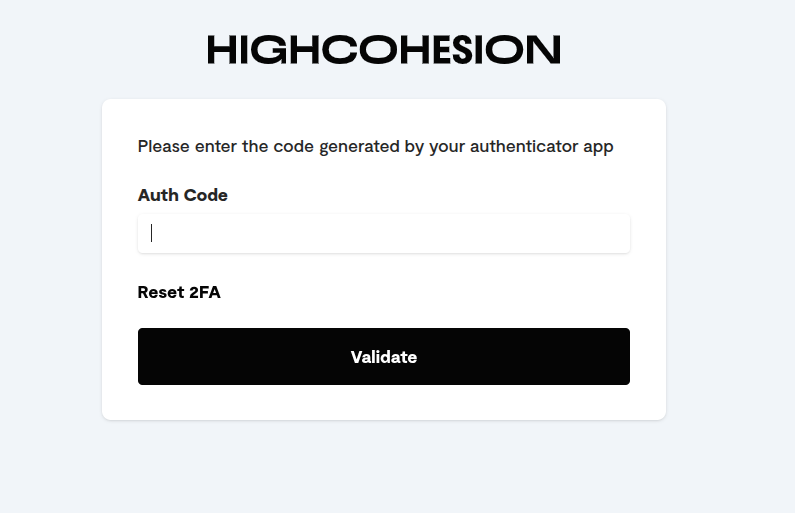
What you should see
If the code is correct you are taken into the Control Panel. From now on, every login asks for a current 6-digit code from your app after your password.
If it did not work
The code is rejected. Codes change every 30 seconds; wait for a fresh one and try again. Check that the time on your phone is set automatically, because an incorrect clock produces invalid codes.
You have lost your phone or deleted the authenticator entry. Use your reset code to set up 2FA again. If you have lost both the authenticator entry and the reset code, email support@highcohesion.com and the team will help you reset 2FA on your account.