Providing and managing system credentials
How to add, update, and manage the keys HighCohesion uses to connect to your systems, and how they are protected.
When to use this
Use this guide when HC needs credentials for one of your systems, or when you need to change or remove credentials HC already holds. For HighCohesion to move data between your systems, it needs credentials for each of them: a Shopify token, a NetSuite integration record, FTP login details, and so on. These are stored as keys in the Control Panel.
For how keys fit into your streams, see How your integrations are structured. For how HC protects the credentials you provide, see Security standards.
Before you start
Access to the Keys page in the Control Panel.
The credentials for the system you are connecting. The fields required depend on the system; two common cases are set out below.
A descriptive title for the key, for example "Live UK Shopify" or "GBP Staging Store".
FTP and sFTP credentials
For file-based integrations, HC needs: host (domain name or IP address), username, password, port (21 for FTP, 22 for sFTP by default), whether passive mode is required, and optionally a remote path (for example /export/orders/) used as the base directory.
Shopify credentials
Shopify access is granted through a custom app created in your Shopify admin (Settings → Apps and sales channels → Develop apps), which issues an Admin API access token. Your HC contact will confirm the exact API scopes your integration needs before you create it.
Steps
Add a key
In the Control Panel, go to Keys.
Press Create Key (top right).
Select the System. The required credential fields load automatically for that system.
Give the key a descriptive Title, for example "Live UK Shopify" or "GBP Staging Store".
Fill in the credential fields and press Save.
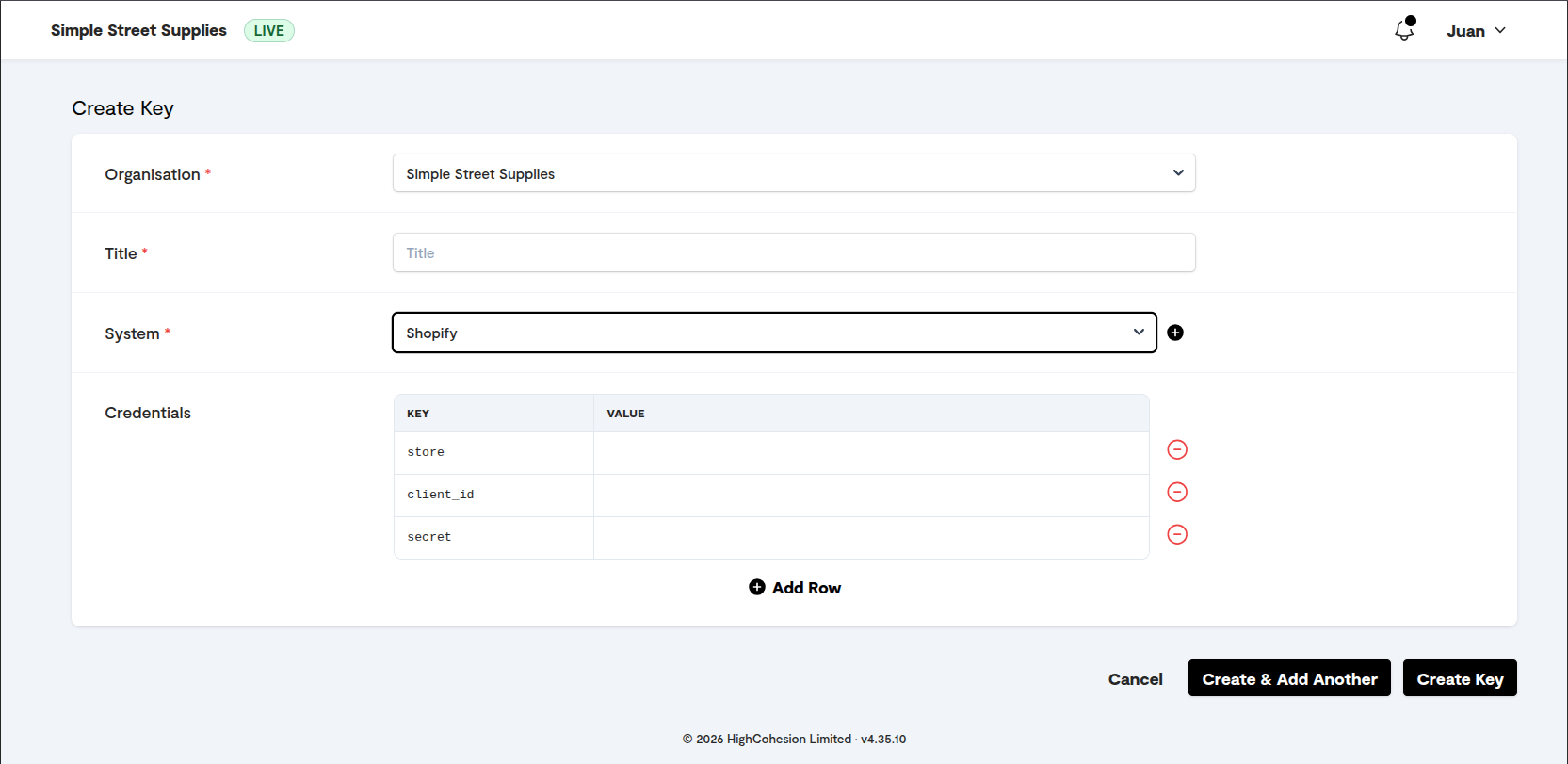
Update a key
Find the key in the Keys list.
Click the Edit icon.
Change the key title. Only the title can be changed.
To change the credentials themselves, create a new key (see Add a key above) and update the existing source and destination configurations to use the new key.
Delete a key
A key that is in active use by a source or destination cannot be deleted. If you believe a key is no longer needed, check with HC before removing it: deleting a key that a stream depends on will stop that stream working.
What you should see
The new key appears in the Keys list under the title you gave it. Sensitive values are hashed in the interface after saving, so the credential values you entered are not shown.
If it did not work
You need to change a credential value, not just the title. Only the key title can be edited. Create a new key with the new credentials and update the source and destination configurations that use the old key.
You cannot delete a key. The key is in active use by a source or destination. Check with HC before removing it.
You are not sure which Shopify API scopes to grant. Your HC contact will confirm the exact scopes your integration needs before you create the custom app.
If you are still stuck, contact HC; see How to get support.
How it works
Credentials are encrypted in transit between your browser and HC's servers, encrypted at rest in secure storage, and used under least-privilege access. Sensitive values are hashed in the interface after saving, and obfuscated in stream execution logs.
Related
Was this helpful?
Still need help? Ask the team